Admin Panel Guide
Learn how to manage content, users, and monetization settings.
1. Content Management (Series & Episodes)
Adding a New Drama Series
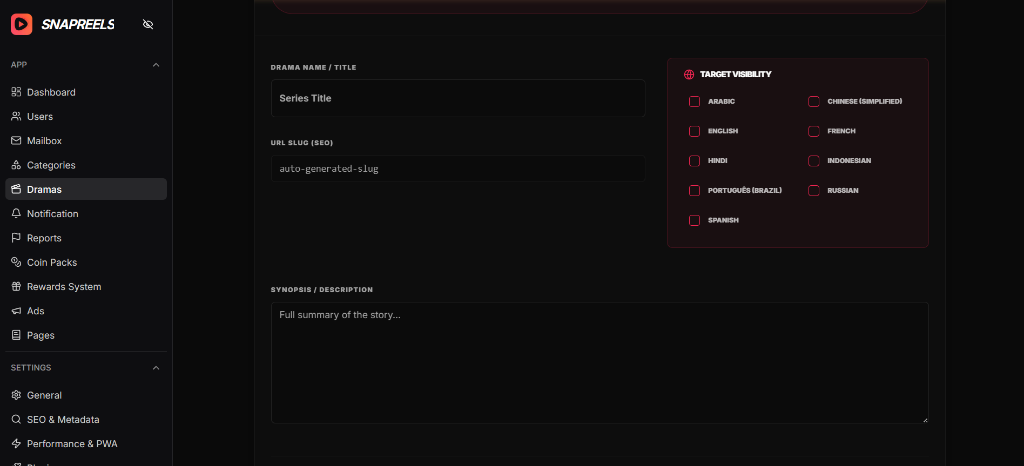
Go to Catalog > Series in the left sidebar and click "Add New Series". Fill in the title, description, and upload a poster image. You can use the built-in AI Metadata Generator to automatically write an engaging description and SEO tags.
You can also configure if the series is "Premium" (requires coins) or "Free" by toggling the switch at the bottom of the form.
Uploading Episodes
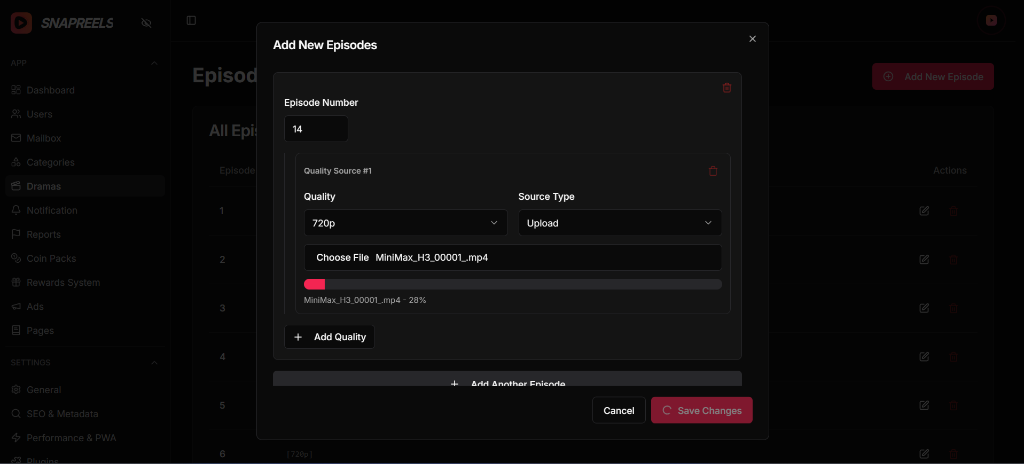
Inside an existing Series, navigate to the Episodes tab. Click "Add Episode". You can choose the source format:
- Direct Link: Paste a direct `.mp4` or `.m3u8` (HLS) link.
- Local Upload: Upload an MP4 video directly to your server (supports chunking for large files).
- Embed Code: Paste an iframe from external sources like YouTube or Dailymotion.
2. Monetization Configuration
Configuring Coin Packs
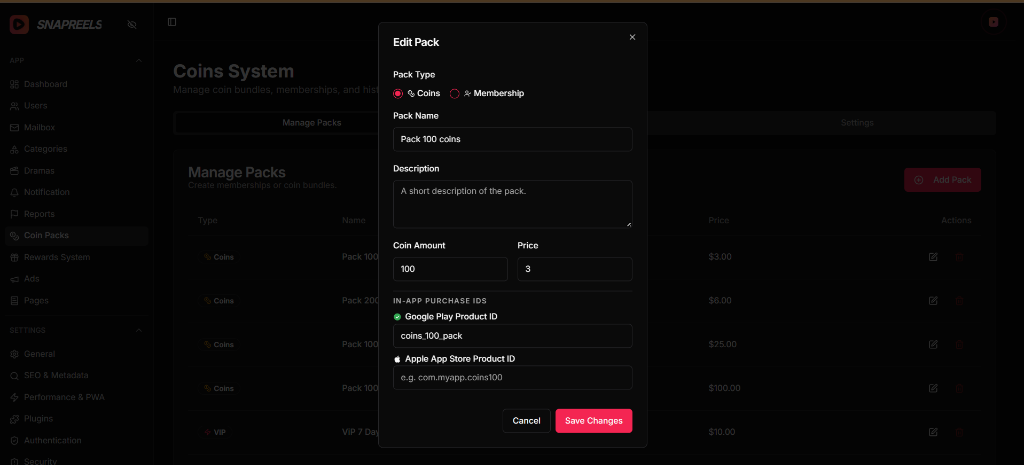
Navigate to Monetization > Coin Packs. Here you can define pricing packages (e.g., 100 Coins for $1.00).
Crucial Step for Android: You must ensure the `Product ID` you enter here exactly matches the Product ID you create in the Google Play Console under In-App Products.
Payment Gateways (Web App)
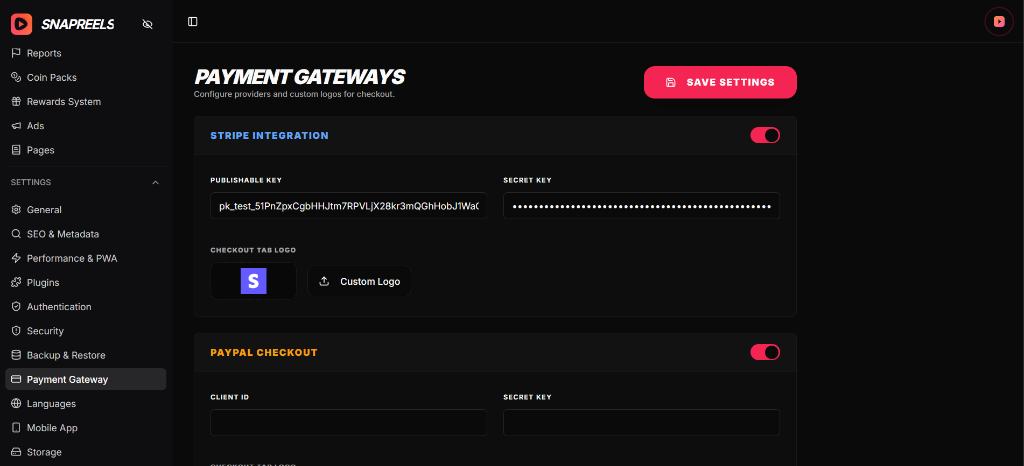
Go to Settings > Payment Gateways. You can enable or disable Stripe, PayPal, Razorpay, or Flutterwave individually.
Ensure you switch off "Sandbox Mode" and input your Live Secret/Public keys when you are ready to accept real payments.
3. User Management
Managing Users & Customer Accounts
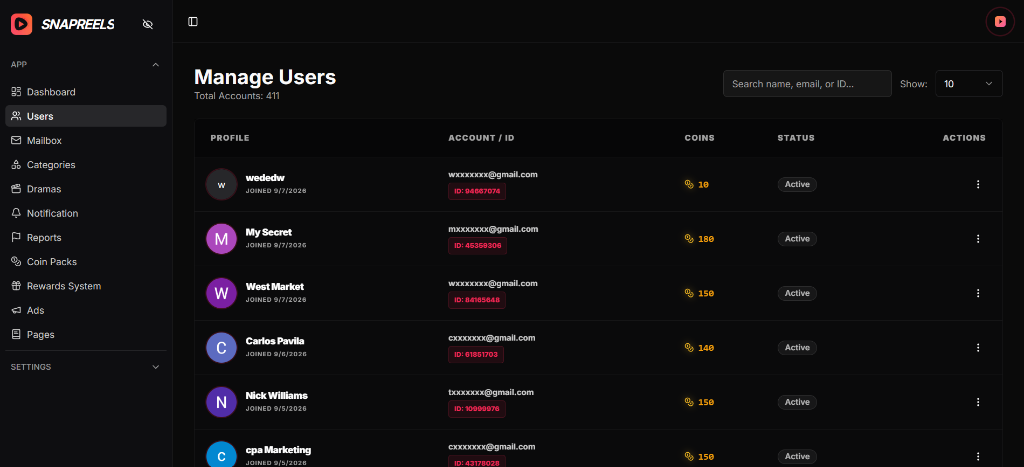
Go to Users in the left sidebar to view and manage all registered customer accounts. From this dashboard you can:
- Search users instantly by Name, Email, or Unique ID.
- View their registration date, email address, and user ID.
- Monitor their live coin balance and activity status.
- Manage account actions and permissions using the action menu.